
We’ve all faced similar situations. You’re trying to find a new cafe or a friend’s warehouse in a busy industrial estate. You’ve got the address, but for some reason, the “nearby landmarks” aren’t helping, and you’ve already circled the block three times.
If you’re a business owner, this is a nightmare. Every minute a customer spends being lost, is a minute they spend getting frustrated with your brand.
The solution is deceptively simple: A Location QR Code. This article is just about that- How to create a location qr code ! For a general guide, see how to create any QR code for free.
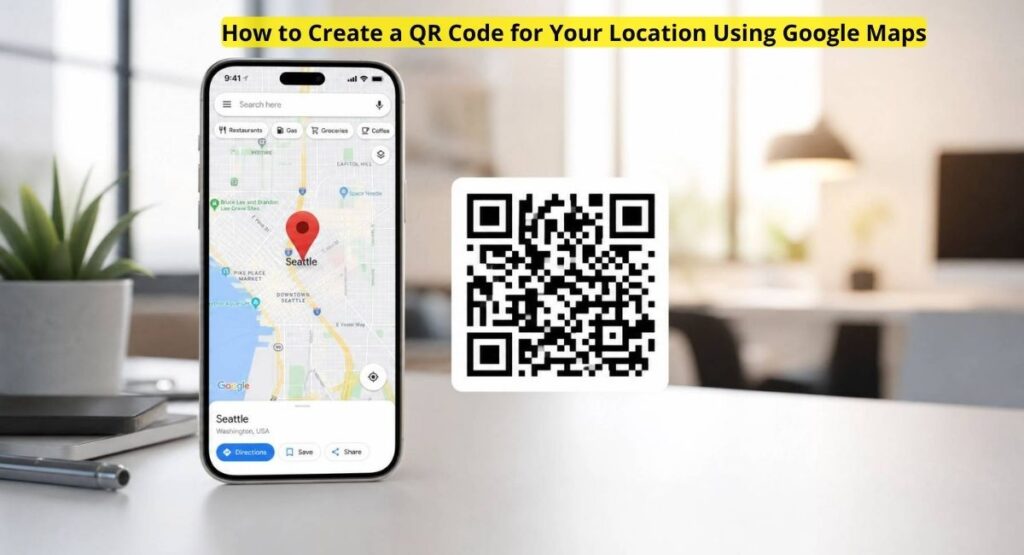
By using a free QR code generator for location, you can turn a complex Google Maps URL into a scannable image that opens the navigation app on any smartphone instantly. No typing, no typos, and no “I’m lost” phone calls.
What Exactly is a Google Maps QR Code?
A Google Maps QR code is a static QR code that contains a direct link to a specific latitude and longitude or a registered business place on Google Maps.
When a customer scans this code with their iPhone or Android camera, it doesn’t just show them a map; it triggers their phone to open the Google Maps app and offers to start “Directions” immediately. It is the bridge between your physical marketing (like a flyer or a storefront) and the digital navigation that gets people to your door.
Why Your Business Needs a Location QR Code
In India, where street addresses can sometimes be… creative, a QR code is a lifesaver for local businesses.
- Eliminate Human Error: Customers often misspell street names or house numbers when typing them into a map. A QR code eliminates the keyboard errors entirely.
- Professionalism: Having a “Scan for Directions” QR on your visiting card or brochure shows you’re tech-savvy and care about customer convenience.
- Boost Physical Footfall: Friction is the enemy of sales. If it’s easier to find you, people are more likely to visit you.
- Perfect for Remote Locations: If your business is located in a basement, a rooftop, or a hard-to-find alley, a precise Google Maps pin is the only way to ensure people arrive at the right spot.
Step-by-Step Guide: How to Generate Your Location QR Code
Generating a QR code for your location is free and takes less than 60 seconds if you follow these steps.
Step 1: Get Your Google Maps Share Link
First, you need the “source” data.
- Open the Google Maps app or website.
- Search for your business name or drop a pin on your exact location.
- Click the “Share” button.
- Select “Copy Link”. You now have a URL that looks something like
https://maps.app.goo.gl/XYZ123.
Step 2: Use a Free QR Code Generator
Now, let’s turn that link into a code.
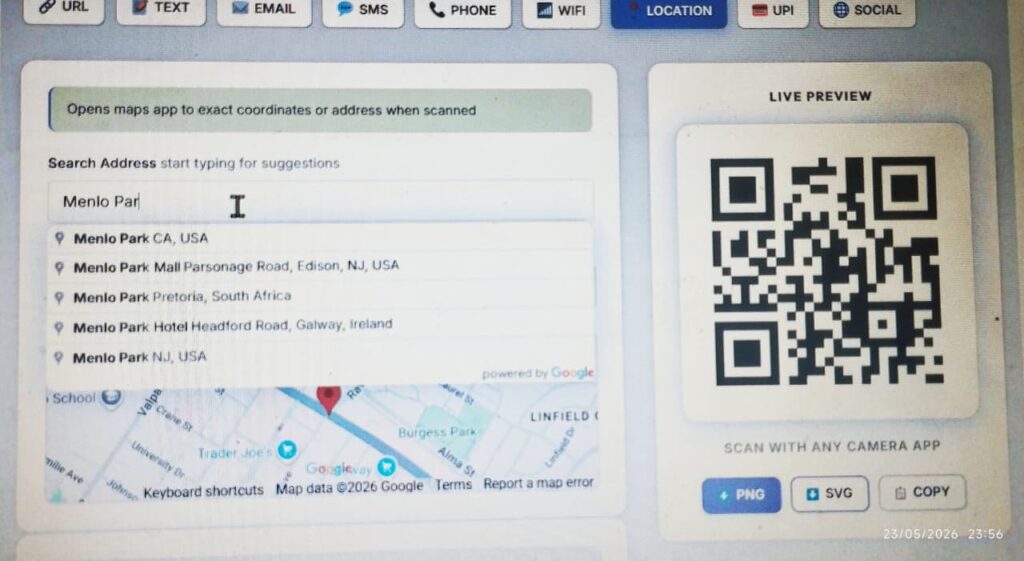
- Go to Free QR Code Generator.
- Look for the URL or Location tab. (Pro tip: Using the URL tab with your Maps link is the most reliable way).
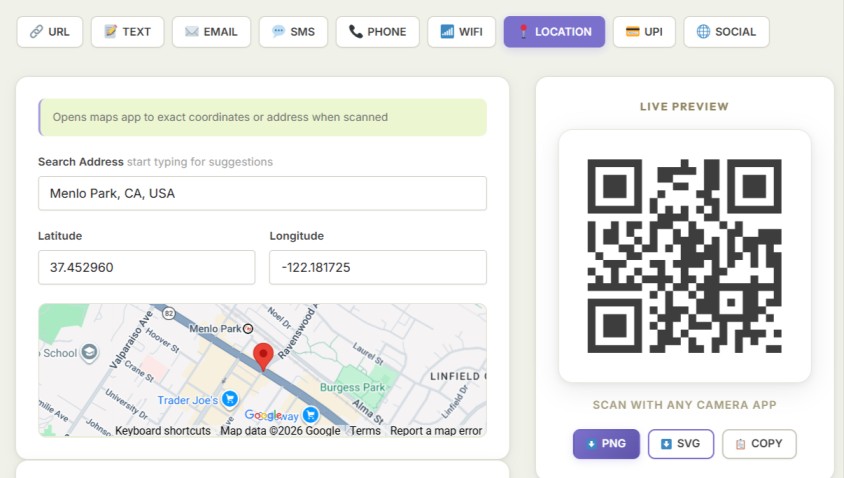
- Start typing your business name or locality on the Search Address input box. The address will get auto-populated.
- Adjust the Pin on the map box below.
- The QR code for the location will get created in real time.
Step 3: Customize for Your Brand
Don’t settle for a boring black box.
- Color: Change the color of the QR code modules to match your brand’s primary color.
- Logo: Many creators like to add a small Google Maps “Pin” icon in the center so users know exactly what the code does before they scan it.
Step 4: Download and Save
Download the image. If you are printing this on a small business card, a PNG file is fine. If you are printing a large shop banner or a billboard, make sure to download the SVG (vector) format so the code stays sharp at any size.
Where Should You Use Your Location QR Code?
The possibilities are endless, but here are the most high-impact placements:
1. Restaurant Table Tents
If you have a multi-location restaurant, put a QR code on the table of one branch that links to your other locations. It’s a great way to cross-promote.
2. Real Estate “For Sale” Signs
Place a large QR code on the “For Sale” sign outside a property. Potential buyers driving by can scan it to save the location for later or see the exact boundaries on a satellite map.
3. Event Invitations
Whether it’s a wedding at a farmhouse or a corporate seminar at a hotel, include a QR code on the physical or digital invite. It saves your guests the “Where is the venue?” WhatsApp message on the morning of the event.
4. Direct Mail and Flyers
If you are distributing flyers in a 5km radius of your shop, a QR code is mandatory. It converts a “maybe I’ll go there” into a “let me see how far it is right now.”
Common Mistakes to Avoid
Before you print 5,000 flyers, keep these “Golden Rules” in mind:
- The 2cm Rule: Never print a QR code smaller than 2cm x 2cm. Any smaller, and older phone cameras will struggle to focus on the modules.
- Contrast is King: Always use a dark color for the QR code and a light color for the background. A “reverse” QR code (white on black) often fails to scan on many apps.
- The “Link Check”: Google Maps links can sometimes change if a business name is updated. Always scan your own code once a month to make sure the pin still drops in the right place.
- Clear Call to Action (CTA): Never just put a QR code by itself. Always write “Scan for Directions” or “Find us on Maps” next to it. People are more likely to scan when they know the benefit.
Static vs. Dynamic: Which is better for Location?
For a permanent business address, a Static QR Code is perfectly fine. It’s free, it never expires, and the location link isn’t going to change.
However, if you are a Pop-up Shop or a Food Truck that moves every week, you should use a Dynamic QR Code. This allows you to keep the same printed QR code on your truck while updating the Google Maps link in the backend every time you move to a new street. Read the basics of static vs. dynamic QR codes in our detailed guide.
Conclusion
Guiding your customers shouldn’t be a hurdle. By using a free QR code generator for Google Maps, you’re providing a seamless, modern experience that starts before the customer even walks through your door.
Ready to put your business on the map? Create your free location QR code now.