
Last updated: May 2026 | Reading time: ~7 min
You need a QR code. And I am here to tell you how to create a QR code for free in under 30 seconds — no signup, no watermark, no credit card.
Maybe you need one for your shop’s UPI payment, your restaurant menu, your business card, or a flyer for an event. The internet is full of tools that let you generate one, but then ask you to pay ₹500/month to actually download it.
That’s a racket. And does it sound fimiliar?
A basic QR code is just encoded data. There’s no reason it should cost anything to generate or download. And If you’re new to QR codes, read our guide on what a QR code actually is first.
We’ll use freeqrcodegenerator.xyz throughout this walkthrough.
What Can You Encode in a QR Code?
Before you start, know what’s possible. A free QR code builder can encode far more than just a website link.
Here’s what you can put in a QR code:
- URL — any website link, Google Maps location, or social profile
- Plain Text — an address, a quote, instructions, anything up to ~4,000 characters
- Email — pre-fill a recipient address, subject, and message body
- Phone Number — tap to call directly from the scan
- WhatsApp — open a chat window with a pre-typed message
- SMS — pre-fill a text message to a number
- Wi-Fi — share your network name and password without typing
- vCard (Contact) — save name, phone, email, company to phone contacts
- PDF / File Link — link to a hosted PDF (menu, brochure, certificate)
- Location / Google Maps — drop a pin at exact coordinates and create QR code for a specific address or map location
- UPI Payment — encode a UPI ID for instant scan-to-pay
Most free QR code makers limit you to URLs only. A good free QR code builder gives you all of the above without a paywall.
How to Create a QR Code for Free — Step by Step
Here’s the full walkthrough using freeqrcodegenerator.xyz. The whole process takes under a minute.
Step 1: Choose Your QR Code Type
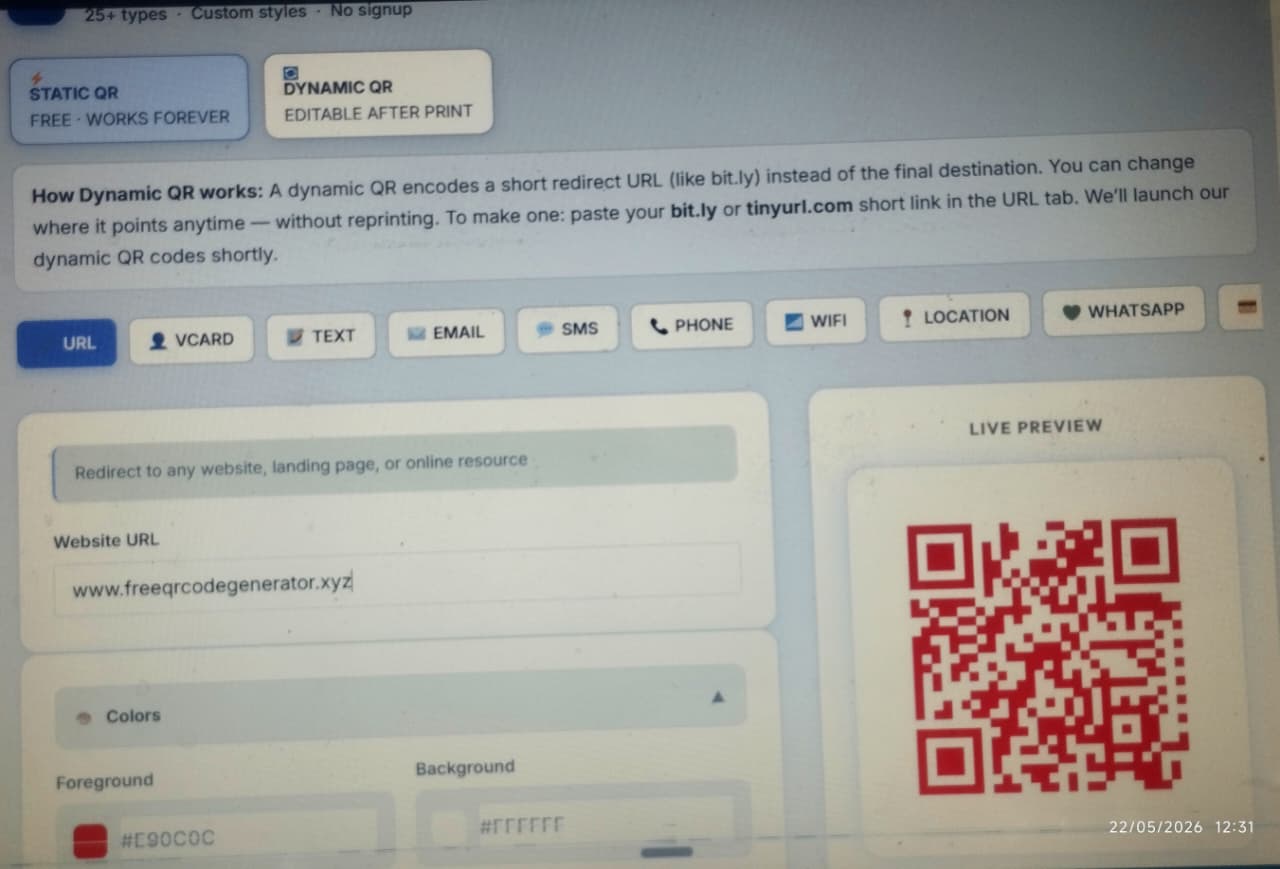
Open the tool. You’ll see a row of QR code type options across the top — URL, Text, Email, Phone, WhatsApp, Wi-Fi, vCard, and more.
Click the type that matches what you want to encode.
For most people, that’s URL (a website link) or UPI (payment). If you’re making a menu, select URL and paste your menu link. If you want people to scan and call you, select Phone.
Tip: Don’t overthink this step. If you just want to share a link to anything — a PDF, a Google Form, a YouTube video, an Instagram page — choose URL and paste the link. URL is the most versatile type.
Step 2: Enter Your Data
Once you’ve selected a type, a form appears below. Fill it in.
- URL type: Paste your link. Example:
https://freeqrcodegenerator.xyz - WhatsApp type: Enter the phone number with country code. Example:
+919876543210 - Wi-Fi type: Enter network name (SSID), password, and security type (WPA/WPA2)
- vCard type: Fill in name, phone, email, company — whatever you want on the contact
The QR code preview on the right updates in real time as you type. You can already scan it with your phone at this stage to check it works.
Step 3: Customize Your QR Code
This is where most paid tools try to squeeze money out of you. On freeqrcodegenerator.xyz, customization is free.
Color
Change the foreground (module) color to match your brand. A dark navy or black on white always scans best. Avoid light colors on light backgrounds — that’s the fastest way to make an unscannable QR code.
Background color
Keep it white or very light. The contrast between foreground and background is what the scanner reads. The higher the contrast, the faster the scan.
Add a Logo
You can upload your brand logo and place it in the center of the QR code. This works because of built-in error correction, as up to 30% of the QR code can be obscured and it still scans and work as expected. But it’s a good rule to keep the logo within 25% of the total QR area.
Frame / Label
Add a call-to-action frame around the QR — “Scan to Pay”, “Scan for Menu”, “Scan to Connect”. This tells people what happens when they scan, which increases actual scan rates.
Step 4: Download Your QR Code
Click Download.
You get two format options:
PNG — standard image file. Use this for digital use (WhatsApp, email, social media, website) and for printing if the size is 1000px or above.
SVG — vector format. Scales to any size without losing quality. Use this for print — banners, hoardings, packaging, merchandise. Never pixelates.
For most people, PNG at high resolution is enough. If you’re sending a file to a printer for large-format printing (flex banners, standees), ask for SVG.
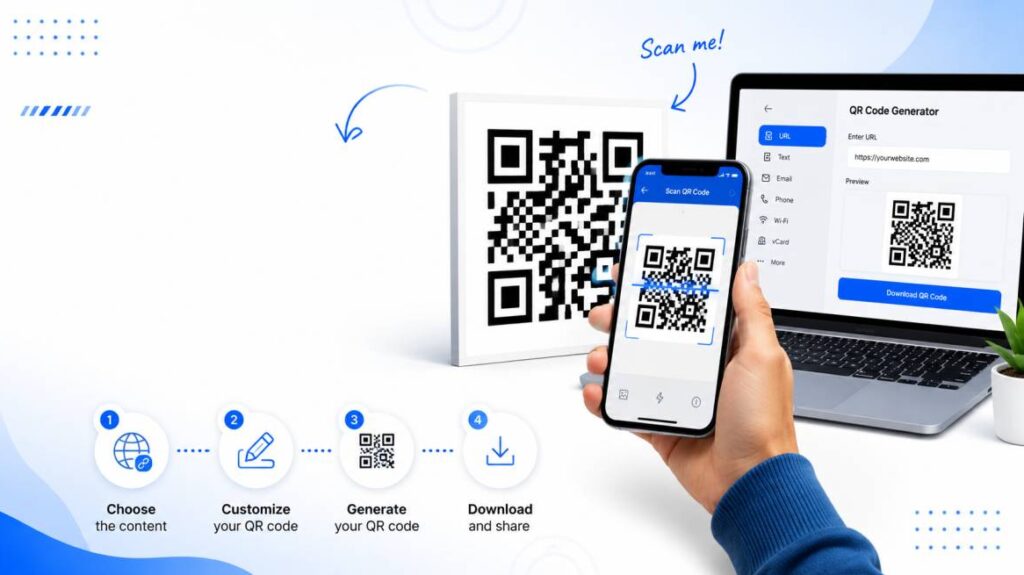
That’s it. Four steps. QR code generated, downloaded, ready to use.
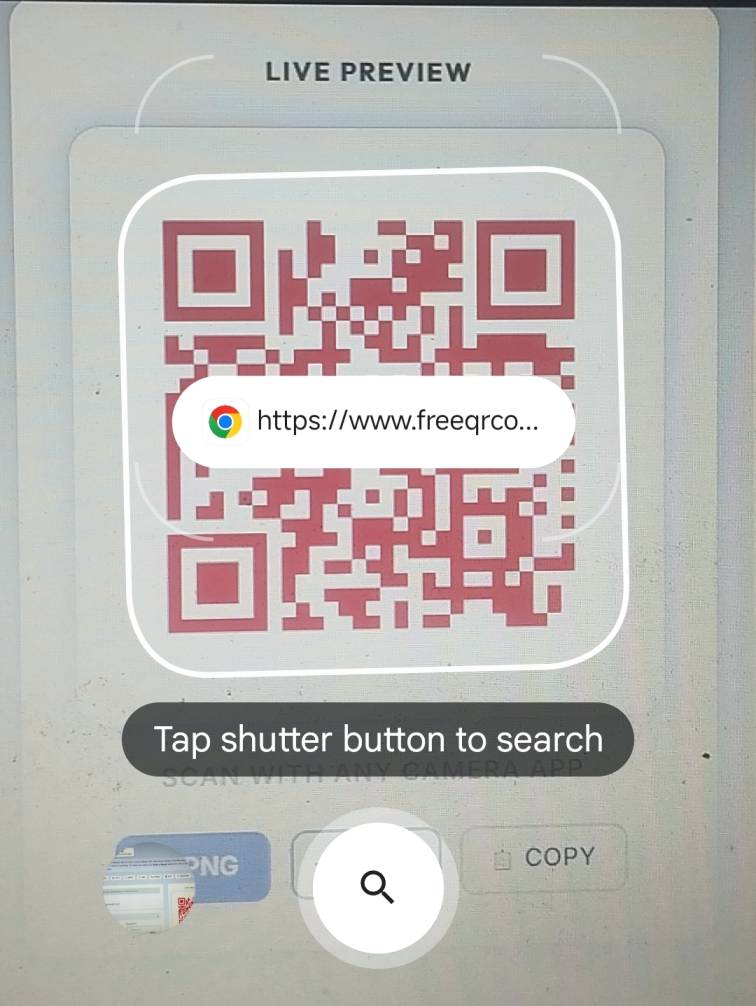
Tips for Best Scan Quality
Generating the QR code is easy. Making sure it scans every single time is where people slip up.
Size matters
Minimum size for reliable scanning: 2.5 cm × 2.5 cm (1 inch × 1 inch) for print. Anything smaller and budget smartphone cameras struggle, especially in low light. For a flex banner or wall display, go 10 cm × 10 cm or larger.
Contrast is non-negotiable
Dark modules on a white/light background. Never reverse this to white on dark — most scanners won’t pick it up. If you must use a dark background, test on five different phones before printing.
Keep the quiet zone
The quiet zone is the white border around the QR code. It needs to be at least 4 modules wide on all sides. Don’t crop it. Don’t let other design elements invade it. The scanner uses that white space to find the code’s edges.
Test before printing
Always scan your QR code before sending it to print. Scan on an Android, scan on an iPhone, scan in bad lighting. If it works on all three — print it. If it doesn’t — regenerate.
Use SVG for anything larger than an A5 print
PNG images pixelate when scaled up. A blurry QR code doesn’t scan. For any print job bigger than a postcard, use SVG.
Where to Use Your QR Code
Once you’ve downloaded it, here’s where it actually makes sense to deploy:
Physical print
- Visiting/business cards (URL, vCard, LinkedIn)
- Restaurant table cards and menus
- Product packaging (brand URL, warranty form, how-to video)
- Event banners and posters (registration link, schedule)
- Brochures and pamphlets
Payments
- Shop counter QR for UPI — print A4, laminate, stick
- Invoice QR code so clients can pay with one scan
- Donation boxes for NGOs, temples, charitable events
Digital use
- Email signatures — link to your website or portfolio
- WhatsApp Business profile image or status
- PowerPoint/slide decks — audience can scan to access links
- Social media posts linking to a form or landing page
Packaging & products
- Link to user manuals, assembly guides, tutorial videos
- Product authentication (link to verify page)
- Reorder page for consumables
Common Mistakes to Avoid
1. Making the QR code too small
This is the most common mistake on business cards. If someone has to hold the card 10 cm from their face and squint, then it’s too small. Minimum 2.5 cm for cards.
2. Using low contrast colors
Yellow on white. Light blue on light grey. These look trendy and scan zero percent of the time in real conditions. Stick to high contrast.
3. Not testing before printing
Hundreds of business cards, printed. QR code points to the old website that no longer exists. Test the QR code immediately after generating, and again after downloading.
4. Putting too much data in a static QR
The more data you cram in, the denser the QR code becomes. Dense QR codes fail on cheap cameras. If your URL is very long, shorten it with a URL shortener first, then generate the QR.
5. Forgetting the quiet zone
Designing a flyer and placing the QR right at the edge with no white margin. Scanner can’t find the code. Always leave breathing room around the QR.
6. Using a PNG for large print
A 500px PNG printed on a 3-foot banner will pixelate badly. Always download SVG for large format.
7. Signing up for a paid dynamic QR service you don’t need
Unless you genuinely need to track scans or update the destination URL without reprinting — a static QR code from a free QR code maker is all you need.
Frequently Asked Questions
Is freeqrcodegenerator.xyz actually free?
Yes. No signup, no subscription, no watermark. Generate and download as many QR codes as you need.
Do QR codes expire?
Static QR codes never expire. The data is baked into the pattern itself — not stored on any server. It will work forever.
Can I edit a QR code after downloading it?
No. Static QR codes cannot be edited once generated. If you need to change the URL, generate a new code and replace the old one.
What’s the best format — PNG or SVG?
PNG for digital and small print. SVG for anything that will be printed larger than A5.
Can I add my brand logo to the QR code?
Yes. Use the logo upload option in the customization step. Keep it to under 25% of the QR area and always test the scan after adding it.
Ready? Generate Your QR Code Now
That’s the full process, just four steps, no cost, no signup.
Use our QR code builder at freeqrcodegenerator.xyz and download it in PNG or SVG. Done in under 30 seconds.